

Glass Eye 2000 lets you change the shape of a design as much as you please. If you distort a design too greatly, it might become impossible to color some of the pieces. This lesson will introduce a command that will help you identify and fix such problems. We'll also discuss how to make sure you're running the latest version of Glass Eye 2000.
Open the file "Suggest" in the Tutorial folder. It looks like this:

It seems that you should be able to color each of these figures with one or more colors. Try now to do so. You will find that only the last figure can be colored! What is wrong?
The problem is that the first three figures are badly formed in some way, even though they look reasonable at first inspection. Fortunately, there is "Suggest" command that analyzes your designs, reports such problems, and gives you suggestions on how to solve them.
Let's examine each of these figures in turn to see what the problems are. The Suggest command analyzes whatever is visible in the current view, so to receive suggestions on only one figure you should first zoom in on that figure to make it the only one visible. Do this now. Put yourself in Zoom mode and drag a zoom box around the circle. The circle should now be the only figure visible; if not, zoom or pan until it is.
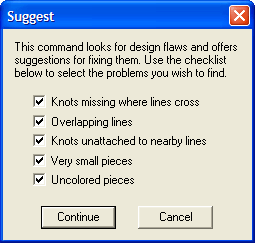
Now pick "Suggest" from the Help menu. If you're running Glass Eye 2000 version 1.2 or later, you should see the dialog box pictured to the
right. Verify that all boxes are checked and click "Continue."
If this dialog box did not appear then just continue with this lesson, but be sure to read the section on upgrading your software at the end of this lesson.
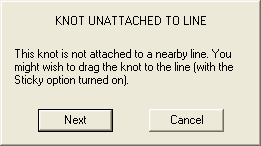 The next message you see should be the one shown to the left. Coming out from this message is a line pointing to the knot that is causing the
problem. What this message is telling you is that a knot is very near to a line but is not attached to it, which is likely to be trouble. If you
look closely you should see that the line is pointing at two knots very close to each other, and this is the cause of the problem.
The next message you see should be the one shown to the left. Coming out from this message is a line pointing to the knot that is causing the
problem. What this message is telling you is that a knot is very near to a line but is not attached to it, which is likely to be trouble. If you
look closely you should see that the line is pointing at two knots very close to each other, and this is the cause of the problem.
Click on "Next" to see further messages. You should see the same message, but this time the line will be pointing at the other of the two adjacent knots.
Click on "Next" again. You will be told that no further problems are found. Click the OK button to dismiss the dialog box.

 By now you can be sure that something is wrong with those two adjacent knots. Let's investigate. First, click the Show Hairlines toolbar button to enable
that viewing option. Doing so will make the problem easier for you to see. Now zoom in closely on those two adjacent knots.
By now you can be sure that something is wrong with those two adjacent knots. Let's investigate. First, click the Show Hairlines toolbar button to enable
that viewing option. Doing so will make the problem easier for you to see. Now zoom in closely on those two adjacent knots.
You can see that there is a gap in the circle, which is why it could not be colored. You can now enter Pick mode and drag one knot on top of the other to reconnect the circle. After you do so, zoom out until you can see the whole circle. You should now be able to fill the circle with color.
 Disable hairlines (by clicking that toolbar button again) and this time zoom in on the square until it fills the screen; you might be able to do this by
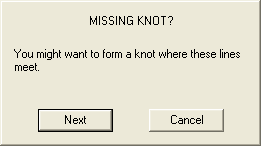
scrolling horizontally. We will now find the problem with this figure by choosing "Suggest" from the Help menu once again. You will see the suggestion shown to the left.
Disable hairlines (by clicking that toolbar button again) and this time zoom in on the square until it fills the screen; you might be able to do this by
scrolling horizontally. We will now find the problem with this figure by choosing "Suggest" from the Help menu once again. You will see the suggestion shown to the left.
 This is the same problem we experienced in Lesson 7: two lines cross but they
do not intersect at a knot. This problem is easily solved as before by entering Add Knot mode and placing a knot at the intersection of the two
lines. After doing so, you should be able to fill each of the four pieces with color.
This is the same problem we experienced in Lesson 7: two lines cross but they
do not intersect at a knot. This problem is easily solved as before by entering Add Knot mode and placing a knot at the intersection of the two
lines. After doing so, you should be able to fill each of the four pieces with color.
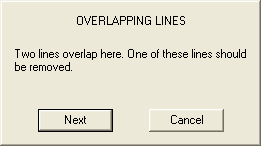 Now zoom in on the triangle. Ask for suggestions and you should receive three, including an "Overlapping Lines" suggestion.
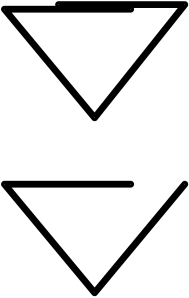 The problem here is that the top of the triangle, which looks like a single line with four knots, is actually two overlapping lines. You can see what is
happening by clicking on (selecting) one of the top line sections of the triangle. The figure (shown in the top figure at the right with the right
line raised a bit to make the point) is not a valid piece because the top two lines are not connected.
The problem here is that the top of the triangle, which looks like a single line with four knots, is actually two overlapping lines. You can see what is
happening by clicking on (selecting) one of the top line sections of the triangle. The figure (shown in the top figure at the right with the right
line raised a bit to make the point) is not a valid piece because the top two lines are not connected.
Click on "Next" or "OK" until there are no more messages. You will see two "Knot Unattached to Line" messages because these suggestions also apply to this figure, but the "Overlapping Lines" message identifies this problem best.
One way to solve the problem is to follow the advice of the suggestion and to delete one of the lines. Let's delete the right line to get the figure shown here.
Now enter Pick mode and drag the right end of the remaining top line over to the right to complete the triangle. You will now be able to color it.
Finally, zoom in on the last figure, which looks something like a figure eight. You are able to color each of the circles without difficulty. Try asking for suggestions now, and you will be given a "Missing Knot" suggestion. If you like, show hairlines and zoom in closely where the circles touch and you will see that there is indeed a place where the two lines cross. But this crossing did not cause problems when coloring, so you can ignore this suggestion. The point of this final example is that the suggestions you receive are just that: suggestions. There are times when you might well choose to ignore them.
If you have lines for which you do not want to see suggestions, select those lines and use the Line Properties command. There you'll see an option to exclude those lines from consideration.
Close the current design without saving it.
As part of our service to you, Dragonfly Software will provide updates to Glass Eye 2000 from time to time. We intend to send out email when these are available, but you can also check for these yourself by using the "Do I Have the Latest Version?" command on the Help menu.
Another way to stay informed is to join our discussion groups. There you can meet other users of Glass Eye 2000, ask questions and share designs. We have groups on Yahoo! and Facebook: