

In this lesson you will learn how to reshape a design by moving its knots and lines. You'll also be introduced to the undo and redo operations. Finally, you'll learn how to use the color palette and how to recolor a piece.
If the Triangle design is not currently open, please open it now just as you did in Lesson 3.
Press Enter to cause a Zoom All, and then press the "–" key twice to provide some working room around the triangle. You might want to remember this as you proceed through the lessons: after opening any file (or after doing a Zoom All) press the "–" key once or twice and it will often be easier to manipulate the design.
Make sure that you are in Pick mode (the Pick toolbar button should be in). Also make sure that Show Knots and Show Colors are enabled and that Show Hairlines is disabled.
Changing the shape of the triangle is easy. Move the pointer over one of the knots, press down the left mouse button, and then drag the mouse. When the knot is moved to the place you want, release the button. During the move you will notice that the lines to move become thin and that the adjacent colors disappear. This is because most computers are not fast enough to show thick lines and areas of color as quickly as you can move the mouse. (If your knot did not move, you probably need to position the pointer over it more exactly.)
Sometimes you want to move something other than one knot. You might want to move several knots, an entire line, or any combination of these. To move more than a single knot you must first select the things you want to move and then drag that selection across the screen.
Try this by clicking on the middle of any of the three lines of the triangle. (Do not hold the mouse key down for long: just click and let go.) The line will change color, indicating that it has been selected. Now drag the line around the screen and release it at some new position. Now click on another line. Notice how the first line you selected is now unselected and that only the new line is selected. Drag around the newly selected line. When you have experimented enough, click outside of the triangle to unselect any lines that were selected.
You can select more than one line by using the Ctrl key. Click on some lines again, but this time hold down the Ctrl key as you do so. Now selecting a line does not unselect a previously selected line. Click on a selected line while holding down the Ctrl key to unselect that line. When you have exactly two lines selected, try dragging them around the screen.
If you wish to select a large number of lines, you may find the select box useful. Let's select all three of the lines using this method. At some point above and to the left of the triangle, press down the left mouse button and drag the mouse. You will drag out a box, and when you release the mouse button every line wholly within that box will be selected. Drag out a box large enough to select the entire triangle, and then drag the entire triangle to another place in the view.
Now click in the view away from the triangle to unselect all lines.
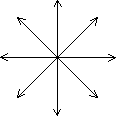 Often you want to move a selection only horizontally, vertically, or diagonally. If you hold down the Shift key while dragging, your movement
will be restricted to only the eight directions shown.
Often you want to move a selection only horizontally, vertically, or diagonally. If you hold down the Shift key while dragging, your movement
will be restricted to only the eight directions shown.
Try dragging some part of the triangle around the screen while you hold down the Shift key to get a feel for this feature. You can specify directions different from the eight shown, but we'll save that for Lesson 6.
 If you want to move a selection straight up, down, left, or right, you can "nudge" it by using the arrow keys. Try this now.
Select a knot or a line by clicking on it, then press one of the arrow keys. The selection will move a small amount in the direction you indicate.
If you want to move a selection straight up, down, left, or right, you can "nudge" it by using the arrow keys. Try this now.
Select a knot or a line by clicking on it, then press one of the arrow keys. The selection will move a small amount in the direction you indicate.
For fine control, hold down the Ctrl key while you press an arrow key. This time your selection will move only a very slight amount.
If nudging does not work, you might be using the part of the keyboard that combines arrow keys with the numeric keypad. If so, turn off Num Lock on your keyboard and try again.
There are many things you can do to a selected shape besides moving it. Another operation you can do is to delete it. Let's try deleting lines from the triangle. Select one of the lines and then press the Del or Delete key. (You can choose "Delete" from the Edit menu if you prefer.) The line disappears, and the color of the triangle disappears with it. This makes sense, because only areas bounded by lines can be colored. Continue to delete lines until the entire triangle is gone.
If pressing the Del key does not delete anything, you might be using the Del key on the numeric keypad. If so, turn off Num Lock on your keyboard and try again.
 The triangle is gone, but we can recover it. Nearly every operation in Glass Eye 2000 is undoable! All you need to do is click the Undo button, shown at the
left. Click the Undo button until the triangle is restored. Each click of the Undo button takes you back one operation, so if you deleted the lines of
the triangle one at a time then this should take three clicks.
The triangle is gone, but we can recover it. Nearly every operation in Glass Eye 2000 is undoable! All you need to do is click the Undo button, shown at the
left. Click the Undo button until the triangle is restored. Each click of the Undo button takes you back one operation, so if you deleted the lines of
the triangle one at a time then this should take three clicks.
 If you undo an operation by mistake you can "Undo the Undo," which is called a "Redo." A Redo reverses the effect of a previous Undo. Try it now by
clicking the Redo button, which is just to the right of the Undo button. Go ahead and Undo and Redo a few times to get a feel for these operations. Stop
at some point where the entire triangle is once again visible. Having Undo and Redo available to you should make you more confident to experiment when
you use Glass Eye 2000: you know that most anything you do can be undone!
If you undo an operation by mistake you can "Undo the Undo," which is called a "Redo." A Redo reverses the effect of a previous Undo. Try it now by
clicking the Redo button, which is just to the right of the Undo button. Go ahead and Undo and Redo a few times to get a feel for these operations. Stop
at some point where the entire triangle is once again visible. Having Undo and Redo available to you should make you more confident to experiment when
you use Glass Eye 2000: you know that most anything you do can be undone!
 There is another way to removing lines that you might prefer to using the Delete command. Click the Erase button, shown at the left, to put you in
Erase mode. Now hold down the left mouse button while you position the pointer near one of the lines. Try this until the entire triangle is gone, then use Undo to restore it.
There is another way to removing lines that you might prefer to using the Delete command. Click the Erase button, shown at the left, to put you in
Erase mode. Now hold down the left mouse button while you position the pointer near one of the lines. Try this until the entire triangle is gone, then use Undo to restore it.
 Changing the color within the triangle is easy using the color palette. The color palette, at the left of the screen, should look
something like what you see here. The length of the palette depends on the size of your main window, and you might even find your last button
only partially showing.
Changing the color within the triangle is easy using the color palette. The color palette, at the left of the screen, should look
something like what you see here. The length of the palette depends on the size of your main window, and you might even find your last button
only partially showing.
The first button is always blank, and is used for removing color. The remaining colors can change from pattern to pattern, depending on what colors the designer used. You will learn how to change palette colors in Lesson 9.
The button that is pressed in indicates the working color. (In the palette shown here, the second button down holds the working color.) The working color is the color you "paint" with as you assign color to pieces.
Choose any color to be the working color by clicking one of the color buttons now. Notice that the pointer changes to a paint can shape indicating that you have entered Color mode. The paint can is upright when there is nothing to color at its location, so that is how the pointer will appear when outside the triangle. The inside of the triangle is colorable, so when the pointer is there you will see a tipped paint can. Click inside and the working color will fill the triangle.
Close this design now by choosing "Close" from the File menu. When asked "Save changes to Triangle?" click the "No" button; otherwise, you would be permanently changing the design used in this tutorial, which you do not want to do.
Next Lesson: Your First Design